
Step 1
Download the LaundryCat app
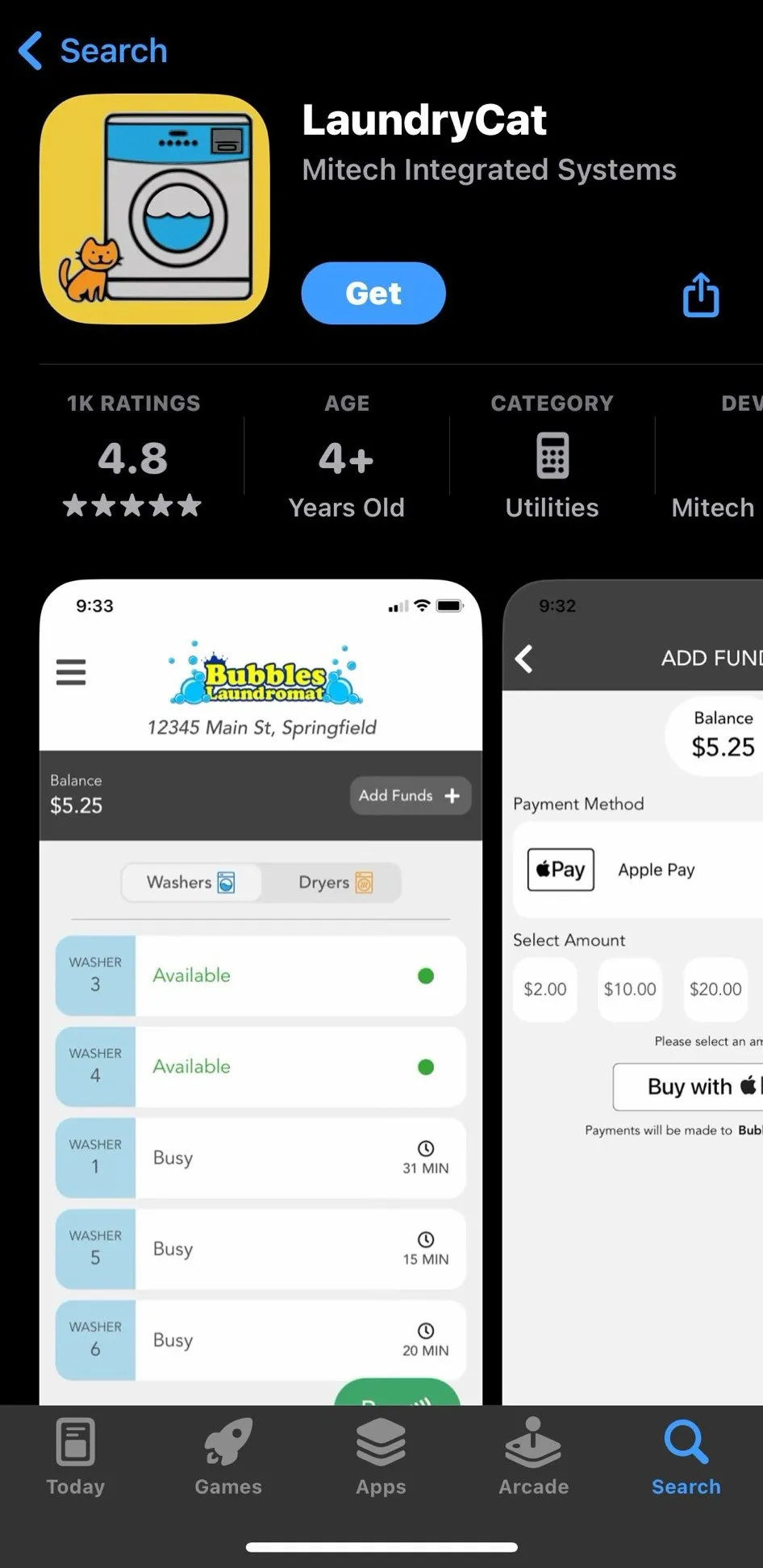
On your phone, download the app from the App Store or Google Play.
Pay for machines from your phone and protect your card balance. Setup takes about 5 minutes.
Step 1
On your phone, download the app from the App Store or Google Play.
Step 2
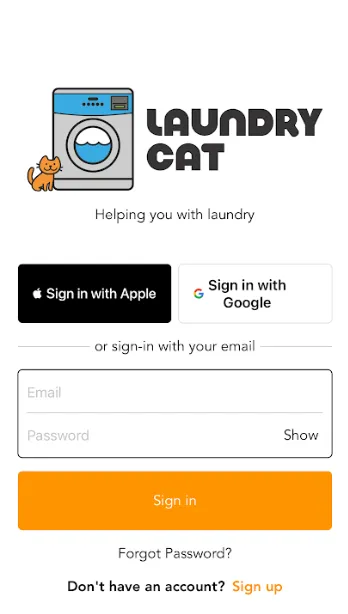
Sign in with your Apple ID or Google account, or sign up with an email address. With email, LaundryCat sends a confirmation link. Click it and your account is ready.
Step 3
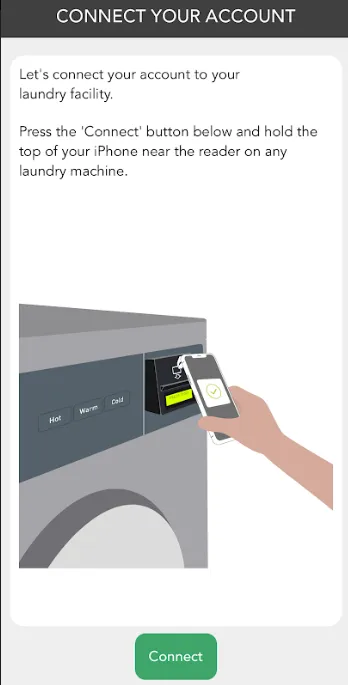
Press the green Connect button in the app, then hold your phone near the card reader of any machine:
Step 4
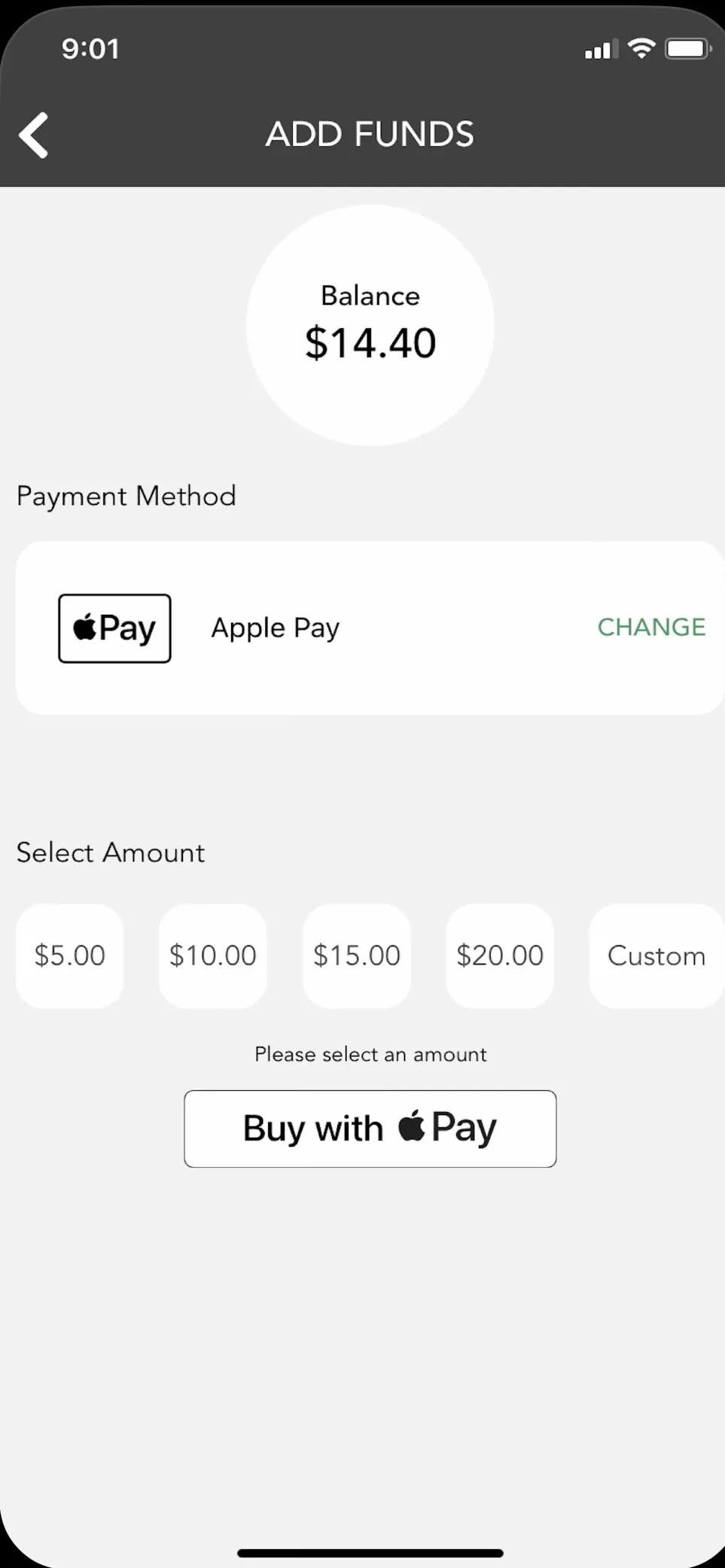
Add money to your balance with a credit or debit card, Apple Pay, Google Pay, or Samsung Pay.
Step 5
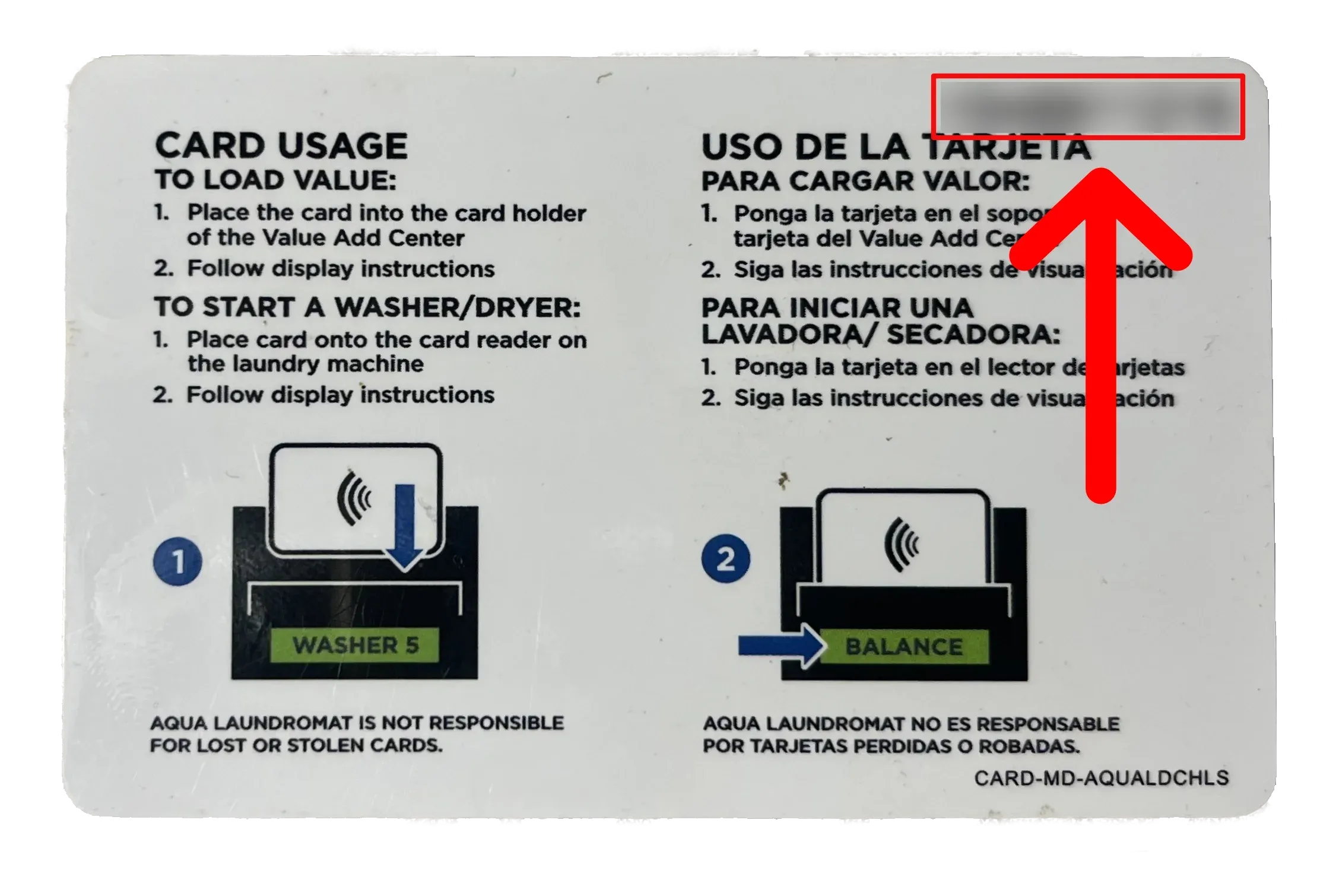
Go to Subscriptions and enter the number from the upper right corner on the back of your card. Once the card is linked, we can move its balance to a new card if you ever lose it.
Lost a card? Contact us. Don't replace the old card number in the app until we've moved the funds to your new card.